How to Use Smart Diagnosis on LG Refrigerator
A homeowner guide to using LG's Smart Diagnosis via the LG ThinQ app, interpreting codes, and deciding next steps. Practical, step-by-step guidance from How To Refrigerator.


You're about to learn how to use LG's Smart Diagnosis to quickly identify fridge issues without specialized tools. This guide covers enabling Smart Diagnosis via the LG ThinQ app, running a test with your smartphone, and interpreting the codes it generates. Following these steps helps you save time and get clear directions for repairs.
What Smart Diagnosis Does for LG Refrigerators
Smart Diagnosis is LG’s built-in diagnostic feature that translates fridge symptoms into codes you can act on. If you're wondering how to use smart diagnosis on lg refrigerator, this feature helps you identify issues without heavy testing. According to How To Refrigerator, starting with Smart Diagnosis can dramatically reduce the time you spend chasing elusive faults and can guide you toward the most effective DIY fixes or informed service calls. Use the LG ThinQ app on your smartphone to initiate the test, then share the resulting codes with a tech or consult your manual for interpretation. This approach is especially valuable for owners who want a first-pass assessment before arranging in-person service. By understanding the symptom-to-code workflow, you can prioritize fixes that address the root cause rather than guess at components.
How Smart Diagnosis Works: A Simple Overview
Smart Diagnosis relies on a short audio signal or digital data captured by the appliance and interpreted by the app. The fridge sends device-emitted tones or data patterns that the LG ThinQ app decodes into commonly encountered fault codes, such as software glitches, sensor misreads, or cooling irregularities. This overview helps homeowners understand what you’re looking at when you run the test and why certain codes appear. The How To Refrigerator team notes that this approach is best used as a first step to narrow down issues before committing to service. With this knowledge, you can look up your model in the manual and match the codes to recommended DIY steps or service triggers.
Preparing Your Smartphone and App
Before you start, ensure your smartphone is charged and connected to the internet. Update the LG ThinQ app to the latest version and sign in with your LG account if required. Check that your refrigerator is in a standby state and not actively cooling; this improves signal quality and reduces accidental misreads. Have the fridge’s user manual handy or reference the How To Refrigerator guide for model-specific steps. It's wise to have a clean workspace and good lighting so you can follow on-screen prompts clearly. Gathering these prerequisites reduces the chance of misreads and helps you capture clearer data for interpretation.
Running a Diagnosis: What to Expect
Open the LG ThinQ app and navigate to the Smart Diagnosis feature. Follow on-screen prompts to place your phone near the refrigerator’s diagnostic area and start the test. The app will play a short sound or listen for tones from the appliance; you may be asked to hold the phone steady for a few seconds. After completion, the app presents a list of codes or a summary of symptoms and recommended next steps. If you see codes you don’t recognize, consult the user manual or the How To Refrigerator guide for interpretation. This phase is designed to be user-friendly and non-technical, helping homeowners translate data into actionable next steps.
Interpreting Results and Next Steps
Interpreting the results requires checking the code list against your model’s documentation. Some codes indicate simple fixes (like door seals or sensor recalibration), while others suggest component-level faults that require professional service. Use the app’s suggested actions as a starting point, then decide whether to perform a DIY adjustment or contact a technician. Remember to capture the results if you’ll share them with a repair professional or a customer support line. If the results point to a complex fault (compressor, refrigerant, or sealed system issues), the How To Refrigerator team recommends scheduling a technician visit.
Safety, Privacy, and Common Pitfalls
When using Smart Diagnosis, avoid sharing sensitive account information through the app. Do not perform repairs beyond your skill level; some issues can worsen without proper tooling or parts. Common pitfalls include running the test on a non-standby fridge, misinterpreting codes, or failing to update the app. Always refer to the model-specific manual and the How To Refrigerator tips to stay safe and informed. This tool is a diagnostic aid, not a substitute for professional assessment when critical failures occur.
Tools & Materials
- Smartphone with LG ThinQ app installed(Ensure the app is updated to the latest version)
- Stable internet connection(Wi-Fi or mobile data)
- Fridge model number and user manual(Useful for interpreting model-specific codes)
- Clean, well-lit workspace around the fridge(Helps you follow prompts and read codes easily)
- Notebook or notes app(Document results and next steps)
Steps
Estimated time: 15-25 minutes
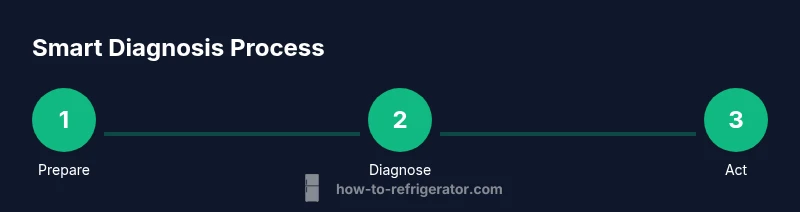
- 1
Prepare smartphone and app
Charge your phone, ensure a strong internet connection, and update the LG ThinQ app to the latest version. Sign in if required and have the fridge model handy for reference. This step ensures the test runs smoothly and minimizes data errors.
Tip: Having the model number on hand accelerates cross-referencing codes. - 2
Open Smart Diagnosis in the app
Launch the LG ThinQ app and navigate to the Smart Diagnosis feature. Read any on-screen guidance and select your fridge model if prompted. This step sets up the diagnostic session in the right context.
Tip: Follow on-screen prompts precisely; deviating can lead to unclear results. - 3
Position your phone
Place the phone near the fridge’s diagnostic area as indicated by the app and start the test. Hold the device steady for the recommended duration to capture accurate data.
Tip: Avoid moving during the listening phase to prevent distorted data. - 4
Run the test and wait for results
Let the app perform its recording or listening phase. The test usually lasts a few seconds to a minute, depending on model and signal quality. The app will then present codes or a summary of symptoms.
Tip: If you miss the prompt, restart the test rather than forcing an action. - 5
Review the results in-app
Carefully review the codes or symptom summary provided by the app. Cross-check with your model’s documentation and the How To Refrigerator guidance to understand potential causes and recommended actions.
Tip: Write down any codes for future reference or when contacting support. - 6
Decide on next steps
Determine whether a DIY fix is feasible (e.g., door seal cleaning, sensor recalibration) or if you should contact a professional for more complex issues (compressor, refrigerant, sealed systems). Use the app’s suggested actions as a starting point.
Tip: If in doubt, schedule a professional inspection sooner rather than later to prevent further damage.
FAQ
Which LG refrigerators support Smart Diagnosis?
Most newer LG refrigerators support Smart Diagnosis. Check your user manual or the LG ThinQ app for compatibility with your model.
Most newer LG refrigerators support Smart Diagnosis; check your manual or the app to confirm compatibility.
Is Smart Diagnosis a substitute for professional service?
No. Smart Diagnosis is a triage tool that helps you identify potential issues and decide whether you can address them yourself or need professional service.
No — it’s a triage tool to help you decide on next steps or when to call a technician.
Do I need internet to use Smart Diagnosis?
Yes. The process relies on the LG ThinQ app, which uses your smartphone’s connection to interpret data and present codes.
Yes. You need internet to run the diagnosis and view results.
What if no codes appear after diagnosis?
If no codes appear, verify the app prompts were followed precisely, repeat the test, and consult the manual for model-specific troubleshooting steps.
If there are no codes, retry the test and check your model’s guide for possible issues.
Can Smart Diagnosis help if the fridge isn’t cooling?
Yes, it can help identify whether sensors, doors, or fans are involved, though severe cooling failures may require professional service.
It can help point to sensor or door issues, but serious cooling faults usually need a technician.
How long does a diagnosis take?
Most sessions take just a few minutes depending on model and signal quality. Plan for a quick test, then review the results.
Usually a few minutes; if signals are weak, it may take longer or require retrying.
Watch Video
Top Takeaways
- Enable Smart Diagnosis in the app before testing.
- Use model-specific codes to guide troubleshooting.
- Document results for future reference.
- Know when to DIY and when to call a professional.