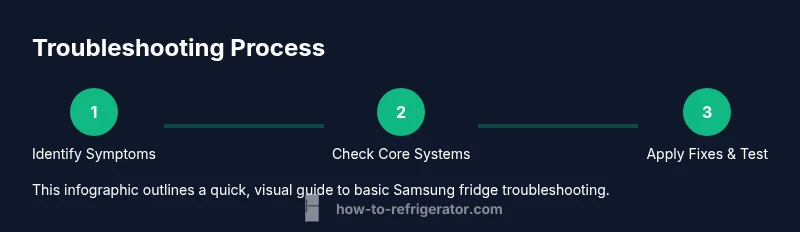
Samsung Smart Refrigerator Guide: Troubleshooting and Maintenance
Learn practical troubleshooting and maintenance for Samsung smart refrigerators. This expert guide covers common issues, connectivity, firmware updates, and safe home fixes for homeowners.


This guide walks homeowners through practical steps to diagnose and fix common Samsung smart refrigerator issues, from cooling and frost to Wi‑Fi connectivity. Learn fast checks, reset sequences, and routine maintenance you can perform with basic tools.
Overview: Samsung Smart Refrigerator Landscape
According to How To Refrigerator, Samsung smart refrigerators mark a shift toward connected kitchen appliances that blend precise cooling with cloud-based control. These models commonly integrate with the Samsung SmartThings ecosystem, enabling you to monitor temperatures, verify door status, and adjust settings from a phone, tablet, or compatible smart speaker. For homeowners, that connectivity translates into fewer trips to the kitchen and more visibility into how food is stored and preserved.
Beyond remote control, these fridges often feature adaptive cooling, touch-enabled panels, and energy-management modes designed to balance performance with efficiency. Many models provide alerts when a door is left open, a water filter needs replacement, or a sensor detects unusual temperature swings. The real value lies in proactive notifications and the ability to respond quickly—even if you’re not standing in front of the fridge. When used effectively, the app and the built-in display become a central hub for daily kitchen life.
From a practical standpoint, installing a Samsung smart refrigerator means establishing an account, connecting to Wi-Fi, and enabling notifications. After setup, take a moment to verify that temperatures align with your preferred ranges and that the app can send alerts to your phone. This establishing phase reduces common headaches later, such as misread temperatures or missed maintenance reminders. In the following sections, you’ll find evidence-based fixes, practical checks, and safe maintenance steps designed for homeowners.
Core Features and How They Help Homeowners
Samsung smart refrigerators bring several core capabilities that help households manage food storage and energy use. At the heart of these features is cloud connectivity via the Samsung SmartThings app, which lets you monitor temperatures, receive alerts, and control settings remotely. Many units also include a touchscreen panel on the door for quick adjustments without pulling out a phone, plus adjustable shelves, door-in-door storage, and flexible compartments designed to accommodate large or irregular items.
Energy-saving modes and precise sensors help maintain consistent temperatures with less energy waste. A built-in door-ajar alert notifies you if a door remains open, which can prevent overcooling and frost buildup in certain compartments. For families that rely on ice and water features, the ice-maker and water-dispenser systems are integrated with routine maintenance prompts that appear in the app. The real benefit, according to How To Refrigerator analysis, is that routine usage of these tools translates to fewer surprises and a clearer picture of current fridge health. Regular firmware updates can further improve reliability and feature-sets over time.
In daily use, homeowners benefit from a single interface that blends appliance controls and smart home integration. The ability to pre-cool items before a shopping trip, or to check the fridge’s status while away, adds convenience and reduces waste. For those who use voice assistants, compatibility with popular ecosystems means you can adjust temps or check door status with spoken commands. Overall, these features empower you to manage a busy kitchen with confidence.
Common Troubleshooting Scenarios
Not cooling properly, frost buildup, a malfunctioning ice maker, or a water dispenser that leaks are among the most common Samsung smart refrigerator issues. Start with simple checks that don’t require tools: ensure the fridge is plugged in, confirm the display is on, and verify that the set temperature matches your needs. If a door sits ajar or the gasket is dirty, the system may compensate by running longer cycles, which can create temperature swings.
If ice isn't being produced, check that the ice-maker arm is not stuck and that the water line is connected and not kinked. A noisy fan or a humming sound can indicate a blocked vent, poor air circulation, or a failing condenser shield; clear any obstructions and confirm that airflow paths remain unobstructed. A water leak near the base or along the door often points to a loose connection, a damaged hose, or an overflowing drip pan—inspect visible hoses and pan for signs of moisture and reseal or replace as needed.
Connectivity problems are common as devices age or encounter roaming network changes. If the fridge won’t connect to Wi-Fi, verify the network name and password, restart the router, and re-link the fridge to your Samsung account. Firmware glitches can also cause odd behavior; a successful update often resolves minor issues. For more persistent problems, you may need to consult the user manual for model-specific steps or contact a professional if refrigerant-related repairs are suspected.
Step-by-Step: Basic Diagnostics You Can Perform
-
Identify symptoms and model: Locate the model number (usually on a label inside the fridge or the door frame) and write down the exact symptoms you’re seeing. Why: Accurate symptoms help you choose the right fixes and prevent unnecessary steps. Tip: Have the owner's manual handy or download the PDF from Samsung’s support site.
-
Check the power and location: Confirm the fridge is plugged in, the outlet is live, and that the fridge isn’t placed near a heat source or in direct sunlight. Why: Poor placement or a tripped outlet can make temperatures drift and trigger alerts. Tip: Use a plug-in meter to confirm voltage.
-
Inspect door seals and gaskets: Close all doors firmly and examine gaskets for cracks, stickiness, or debris. Why: A poor seal forces the system to run longer, increasing wear and energy use. Tip: Clean seals with mild soap and warm water; replace if damaged.
-
Verify airflow and vents: Look for obstructions in the back panel or crisper drawers and ensure vents aren’t blocked by containers. Why: Adequate airflow is essential for even cooling. Tip: Remove items that block the vents and reorganize shelves for airflow.
-
Check the water line and ice maker: If you have ice or water features, inspect the supply line for kinks, freezes, or leaks. Why: Blocked flow or freezing can limit ice production or cause leaks. Tip: If you see frost around the line, thaw gently and inspect connections.
-
Reset and test: Perform a soft reset by unplugging the unit for 30-60 seconds, then plug back in and allow a few hours for stabilization. If problems persist, perform a factory reset per the model manual and reconfigure settings. Why: A reset can clear minor firmware hiccups and restore expected behavior. Tip: Document your settings before resetting.
-
Update firmware and re-link to app: Connect to Wi-Fi, check for firmware updates, and re-link the fridge to the Samsung SmartThings app if needed. Why: Updates can fix bugs and improve compatibility. Tip: Keep your phone on a stable network during updates.
-
Test operation: After steps, monitor temperatures and ice/water functions for a day. Note any deviations or new alerts. Warning: If you suspect a refrigerant leak or compressor issue, stop and call a professional immediately. Estimated time: 60-90 minutes.
Tools & Materials
- Phillips screwdriver or Torx driver(Used for panel access or screws that secure panels/filters)
- Soft microfiber cloth(For cleaning gaskets and exterior surfaces)
- Mild soap and warm water(Gentle cleaner for gaskets and interior components)
- Plastic card or soft scraper(Dislodge debris from tight gaps without scratching surfaces)
- Rotating fan or brush (optional)(Clean condenser area if accessibility allows)
- Digital thermometer or fridge thermometer(Used to verify internal temperatures if available)
- Smartphone with Samsung SmartThings app(To check connectivity, run updates, and monitor alerts)
- Plug-in power meter (Kill A Watt type)(To verify outlet is delivering correct voltage)
Steps
Estimated time: 60-90 minutes
- 1
Identify symptoms and model
Locate the model number (usually on a label inside the fridge or the door frame) and document the exact symptoms you’re seeing. This will guide your fixes and prevent unnecessary steps. Have the manual handy or download it from Samsung’s support site.
Tip: Keep a quick reference card with the model number and common symptoms for fast access. - 2
Check power and placement
Ensure the fridge is plugged in and the outlet is live. Avoid placing the unit near heat sources or in direct sunlight, which can cause temperature drift. If the outlet is questionable, test with a meter.
Tip: If the outlet trips, reset the breaker and test after several minutes. - 3
Inspect door seals and gaskets
Close all doors firmly and inspect gaskets for cracks, debris, or stiffness. A compromised seal can cause energy waste and improper cooling. Clean with mild soap and warm water; replace if damaged.
Tip: Gently rub along the gasket with a damp cloth to restore a seal without tearing it. - 4
Verify airflow and vents
Check interior vents and back panel for obstructions. Ensure shelves aren’t blocking airflow, which can create uneven cooling and frost in some zones.
Tip: Reorganize items to keep vents clear; leave a few inches around the back. - 5
Check water line and ice maker
If you have ice or water features, inspect supply lines for kinks, freezing, or leaks. Blocked flow can reduce ice production and cause leaks.
Tip: If you see frost near lines, thaw gently and reseat connections before testing again. - 6
Reset the fridge
Perform a soft reset by unplugging the unit for 30-60 seconds, then plug back in and wait for stabilization. If issues persist, consult the model manual for a factory reset and reconfigure settings.
Tip: Document your preferred temperature settings before resetting. - 7
Update firmware and re-link
Connect to Wi‑Fi, check for firmware updates, and re-link the fridge to the Samsung SmartThings app if needed. Updates can fix bugs and improve compatibility.
Tip: Keep your phone on a stable network during updates. - 8
Test operation after fixes
After completing steps, monitor temperatures and ice/water functions for a day. Note any deviations or new alerts.
Tip: If a refrigerant leak or compressor issue is suspected, stop and contact a professional immediately.
FAQ
Do Samsung SmartThings features require a subscription?
No subscription is required to use the basic connectivity and alerts. Some advanced features may require account setup and device pairing within the Samsung ecosystem.
No subscription is needed for core connectivity, just set up your Samsung account and pair the fridge with SmartThings.
What models support Wi‑Fi connectivity?
Most Samsung smart refrigerators released in recent years offer Wi‑Fi connectivity and SmartThings integration. Check the product page or user manual for your exact model.
Most newer Samsung smart fridges support Wi‑Fi and SmartThings; consult your manual for your specific model.
Will performing self-diagnostics void my warranty?
Self-diagnostic steps and basic troubleshooting generally do not void the warranty, but avoid disassembly of sealed refrigerant components. If in doubt, contact the service provider.
Basic troubleshooting usually won't void the warranty, but don't open sealed parts—check with support if unsure.
How often should I update firmware?
Check for firmware updates when prompted by the app or during routine maintenance. Updates can improve reliability and compatibility with other smart devices.
Check for updates when the app prompts you; updates can help with reliability and compatibility.
What should I do if ice maker stops working?
Verify the water line, clear any ice blockages, and check the ice-maker arm. If problems persist after these steps, consult the manual or contact support.
First check the water line and ice maker arm, then consider a reset or support if needed.
Is a noisy fridge always a defect?
Not always. Some operating noises are normal, but persistent or unusual sounds from fans or compressors warrant inspection for airflow issues or component wear.
Some noises are normal; if a sound is persistent or unusual, inspect airflow and components or seek help.
When should I call a professional?
If you notice refrigerant signs, persistent cooling failures after basic steps, or electrical hazards, contact a licensed technician.
Call a professional if you suspect refrigerant issues or persistent electrical/safety concerns.
Watch Video
Top Takeaways
- Run routine checks to prevent surprises
- Keep door seals clean for efficient cooling
- Use the app to monitor status and alerts
- Only perform safe resets and firmware updates